Blocks Reference(MindPlus)
Image display
| |
| Block | 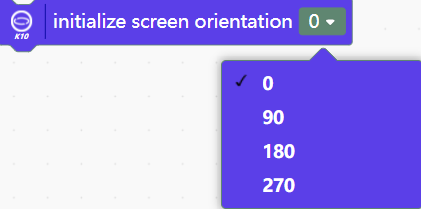 |
| Description | Used to set the screen display direction, there are 4 display directions, the number indicates the number of degrees the screen rotates counterclockwise, each display direction corresponds to a different coordinate range.Setting the screen orientation can only be set during initialization, and will not take effect in other locations.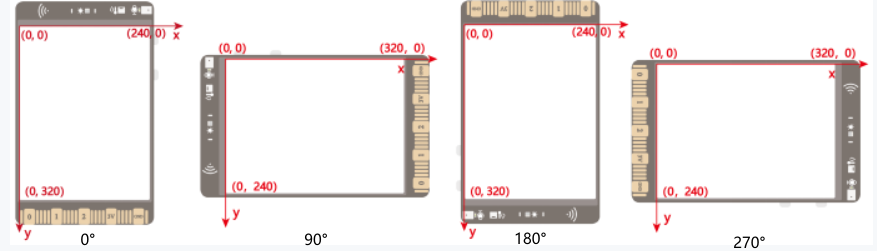 |
| Block |  |
| Description | Show/Disable Camera. Use this command to display or not display the camera screen on the K10 screen. |
| Block | 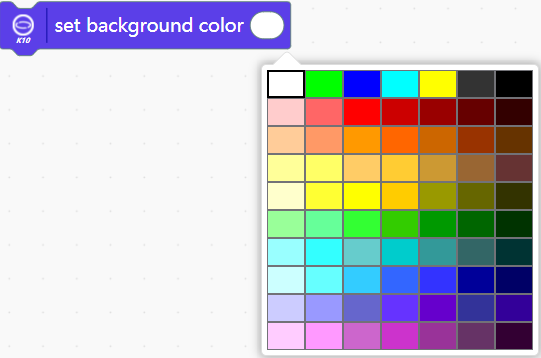 |
| Description | Sets the background color of the screen. If not set, the background color of the screen defaults to white. |
| Block |  |
| Description | Display the cached contents on the screen.When using display-related commands (e.g., text, shapes, pictures), this "show cached contect" block has to be added to display the content.But the clear screen command clears the screen immediately, this "show cached content" may not be used. |
| Block |  |
| Description | Immediately clears pictures, text, lines, and graphics displayed on the screen.The camera screen cannot be cleared by this block. To turn off the camera screen, use the “Turn off camera screen” block.The camera display cannot be cleared by this block. To turn off the camera display, use the "Disable camera show" block. |
| Block | 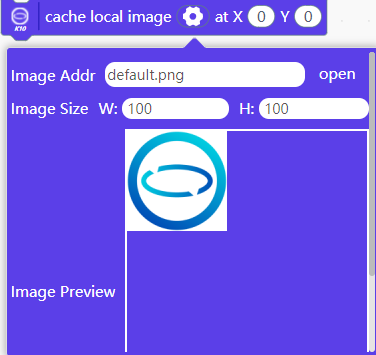 |
| Description | Display the local picture at the specified location (coordinates), you can set the display size of the picture on the k10 display by adjusting the width and height of the image size.The image size must be within 240x320 pixels, too large an image will be a serious waste of memory.If too many pictures are loaded, the storage limit of K10 will be exceeded and an error will be reported as “not enough memory” when burning.K10 has a total of 16MB of code storage space, depending on the complexity of the code, it will affect the size of the space available for caching photos.Locally loaded images do not support transparent background images, to display transparent background images please load via TF card. |
| Block |  |
| Description | Display pictures in TF memory card at specified location (coordinates), support to display png, jpg and bmp format pictures.This block can display pictures with transparent backgrounds.bmp only supports images with 16-bit color bit depth, this format is mainly used to display images taken by K10, png or jpg format is recommended.Do not modify the image format by directly modifying the suffix, otherwise it may cause display abnormality. |
| Block |  |
| Description | Save the current frame captured by the camera and store it in the TF card.When you start taking a picture, the indicator light in the upper-right corner will turn on immediately. It is recommended to keep the screen steady for about 0.5 seconds after starting the capture. During this short period, you may notice a slight lag on the screen, as the system is temporarily caching the captured image.After the initial 0.5 seconds, you can move the camera freely. The system will then gradually write the cached image data to the TF card. Once the indicator light in the upper-right corner turns off, the photo has been successfully saved, and you can proceed to take the next picture.Note that when you take or display a picture with K10, only bmp format is supported. |
Text display
| |
| Block |  |
| Discription | Displaying text of the specified color will appear on the K10 screen from the top-left corner.The K10 supports a total of 13 lines of text display when in portrait orientation.This command can quickly complete the text display, if you need to adjust the position, please use the text display command that can set the coordinates.This command forces an autoclear operation, see another block below for what autoclear does. |
| Block |  |
| Discription | Clears the display of text on the certain line. |
| Block |  |
| Discription | Displaying text at the specified position (coordinates), the font size refers to the pixels occupied by the character font, there are two choices 24x24 and 16x16.The page holds a maximum of 512 English letters or 256 Chinese characters.Line Character Count indicates that line feeds are automatically performed based on the set number of characters in the text. When calculating the number of line breaks, Chinese, English letters and punctuation will be counted as one word. The maximum number of supported line breaks is 49, and the default is no line breaks when it is set to 50.Auto-clear indicates whether or not the previous text should be cleared first to re-display the new text. When auto-clear is enabled, it will automatically clear all the content after the coordinates to the background color, including the already displayed text, lines, and images. Please refer to the example below for more details on how to use this feature. |
Lines and shapes display
QR Code Display
| |
| Block |  |
| Discription | Convert text and URLs into QR codes to be displayed on the K10 screen. |
| Block | 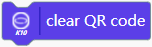 |
| Discription | Clear the QR code display on the screen.The "Clear Screen" block does not work on QR code, to clear the QR code display, you need to call the "clear QR code" block. |
On board sensor
LED control
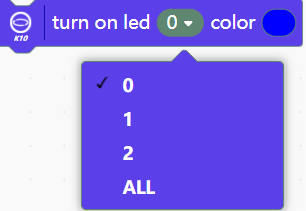
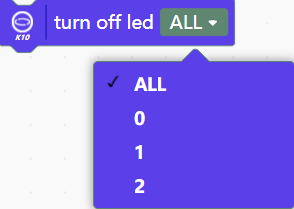
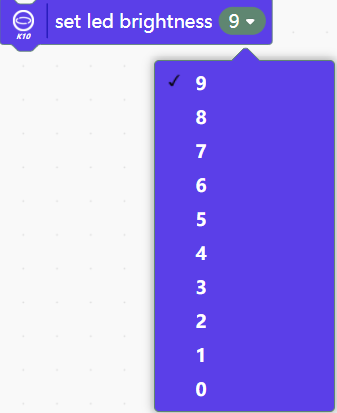
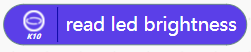
There are three RGB LEDs on the underside of the back of the K10, use the serial number to specify which RGB LED to control. The serial numbers and the locations of the RGB LEDs are shown below.
Audio
AI-Face recognition
| |
| Block | 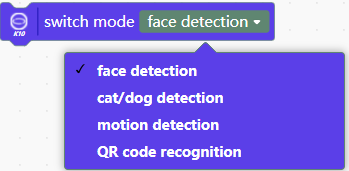 |
| Discription | The block is used to switch between machine vision algorithm modes and to superimpose the recognition frame on the screen. Among them, four algorithm modes can be selected: face detection, cat and dog detection, motion detection and QR code recognition. Only for face detection and cat face detection, the recognition frame is superimposed. Detection requires the screen to be vertical (Type-C port facing up), horizontal screen will not be detected |
| Block | 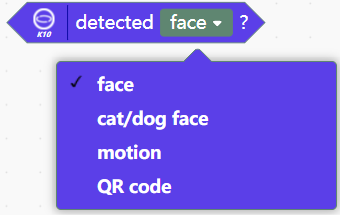 |
| Discription | In the corresponding algorithmic mode, it is used to determine whether a face/cat/dog/movement/QR code is detected or not. |
| Block | 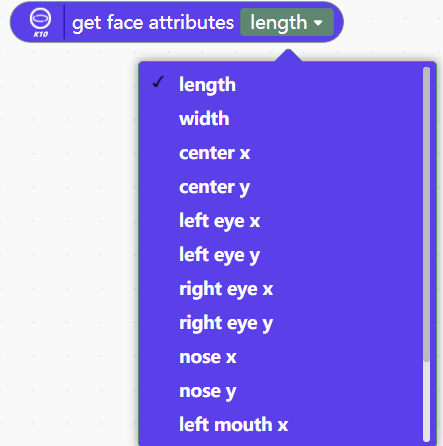 |
| Discription | Get the key point data of the detected face, containing 14 items such as length, width, centre point coordinates, left and right eye coordinates, nose coordinates, left side of mouth coordinates, right side of mouth coordinates and so on. |
| Block | 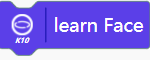 |
| Discription | Learning faces, used to collect and learn recognised faces, after successful learning it will automatically assign an ID number to the face, ID number starts from 1, up to 48 faces can be learned. No need to relearn the ID after powering off K10. |
| Block | 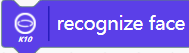 |
| Discription | Recognise faces that have been learned. |
| Block |  |
| Discription | Determine whether recognition is complete. |
| Block |  |
| Discription | Get the recognised face ID, used to read the face ID number after successful recognition. After succesfull recognition this instruction will only fetch the ID number of the recognised face once, and after fetching it once, the instruction will perform a reset operation (the value changes to -1). |
| Block | 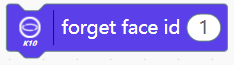 |
| Discription | Forgets the assigned face ID that has been learnt. |
| Block | 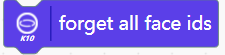 |
| Discription | Forget all learned face IDs. |
| Block | 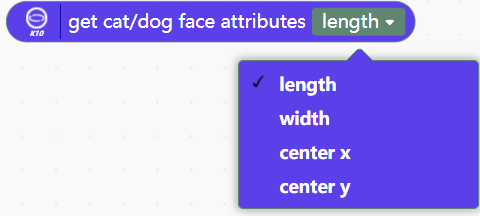 |
| Discription | Get the key point data of the detected cat face containing length, width, centre point x, centre point y. |
AI-QR code recognition
| |
| Block |  |
| Discription | Get the result of QR code recognition. The QR code recognition mode, unlike face and dog and cat detection, does not show a recognition box in the screen when the QR code is recognised. |
AI-Motion detection
| |
| Block |  |
| Discription | Sets the motion detection sensitivity, the larger the setting value, the more sensitive the detection of motion, the range is 0-100. If you do not set the sensitivity when using motion detection, the default value is 50. |
AI-Speech recognition
Serial port
| |
| Block |  |
| Discription | Serial port output content. Line feed/non-line feed can be set, and the form of output content can be string, raw data, hexadecimal number. |
| Block |  |
| Discription | Detects whether the serial port has data to read. |
| Block |  |
| Discription | Read the data at the serial port. |
| Block | 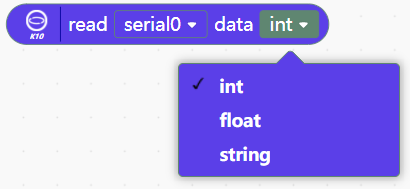 |
| Discription | Reads an integer/decimal/string from the serial port. |
| Block |  |
| Discription | Retains a specified number of decimal places and handles decimal numbers sent or received through the serial port to the specified number of digits. |
| Block |  |
| Discription | Sets the baud rate for serial port 0 (Hardware Serial). |
| Block |  |
| Discription | Set the Rx (receive) and Tx (transmit) pins and baud rate for serial port 1 (Software Serial). |
Pin operation
| |
| Block | 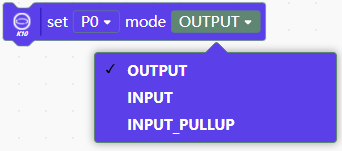 |
| Discription | Setting the mode of the pin, the selection modes are Output (OUTPUT), Input (INPUT), and Pull-up Input (INPUT_PULLUP). The pull-up input mode is generally used to stabilize the pin signal to a high level when an input pin is dangling.
To connect an external sensor to the K10, you need to set the mode of the corresponding pin with this instruction. |
| Block | 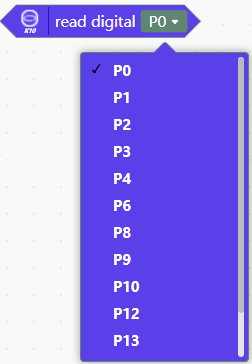 |
| Discription | Reads the value of the digital pins and reads the results as 1 and 0. |
| Block | 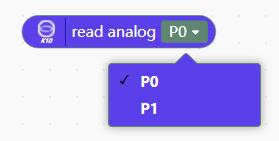 |
| Discription | Reads the value of an analog pin with a read data range of 0-4095. |
| Block | 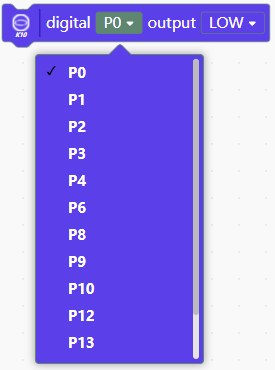 |
| Discription | Set pin output high or low level |
| Block | 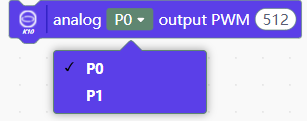 |
| Discription | Sets the specified analog pin output PWM value with a value in the range of 0-1023. |
System
| |
| Block | 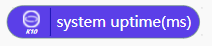 |
| Discription | Time elapsed since the start of program execution (Unit: ms) |