3.fill_rect()
Description
Create a solid rectangle on the UNIHIKER screen
Syntax
GUI.fill_rect(x, y, w, h, color , onclick)
Parameters
x: The x-coordinate where the rectangle is displayed on the UNIHIKER screen.
y: The y-coordinate where the rectangle is displayed on the UNIHIKER screen.
w: The width of the rectangle.
h: The height of the rectangle.
color: The colour of the rectangle.
onclick: The callback function triggered when the rectangle is clicked.
Return
**Rectangle object
Example Description
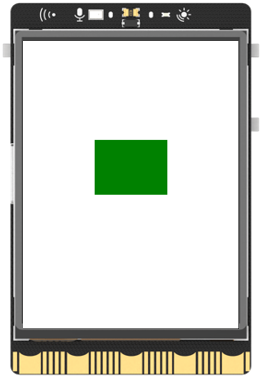
In this example, our main objective is to display a rectangle on the UNIHIKER screen and bind it to a click callback function.
Hardware Required
Example Code
Instantiate an object of the GUI class within the UNIHIKER class, and call the fill_rect() function through this object to display the rectangle and set the appropriate attributes.
from unihiker import GUI   # Import the package
gui = GUI()  # Instantiate the GUI class

# Fill a rectangle on the GUI with the specified coordinates and parameters
# The rectangle is located at (x=80, y=110) with a width of 80 pixels and a height of 60 pixels
# The color of the rectangle is specified as "green"
# When the rectangle is clicked, the lambda function is executed, which prints "fill rect clicked" to the console
gui.fill_rect(x=80, y=110, w=80, h=60, color="green", onclick=lambda: print("fill rect clicked"))

import time
while True:
    # Add a delay to prevent the program from exiting and to observe the effects
    time.sleep(1)
Program Effect: